
When you buy through links in this article, I may earn an affiliate commission. Learn More.
Meross provided the samples for this review.
Controlling a smart home inevitably leads to decisions being made about what is most convenient for which task. Sure, you can just use the app on your phone to do everything all the time, but that’s not necessarily the best option for every situation. Voice control is a popular option as well, and certainly has its genuine utility, but again it’s not always desirable.
One solution to some of these edge cases is the smart button, aka scene remote. These types of devices have been around for as long as smart homes and provide a way to perform frequent tasks with a single button press. These can be useful for a range of tasks such as providing a physical control for smart blinds, or a shortcut for commonly used scenes. Even light switches can be replaced with them to resolve the issue of smart bulbs being turned off at the switch by accident.
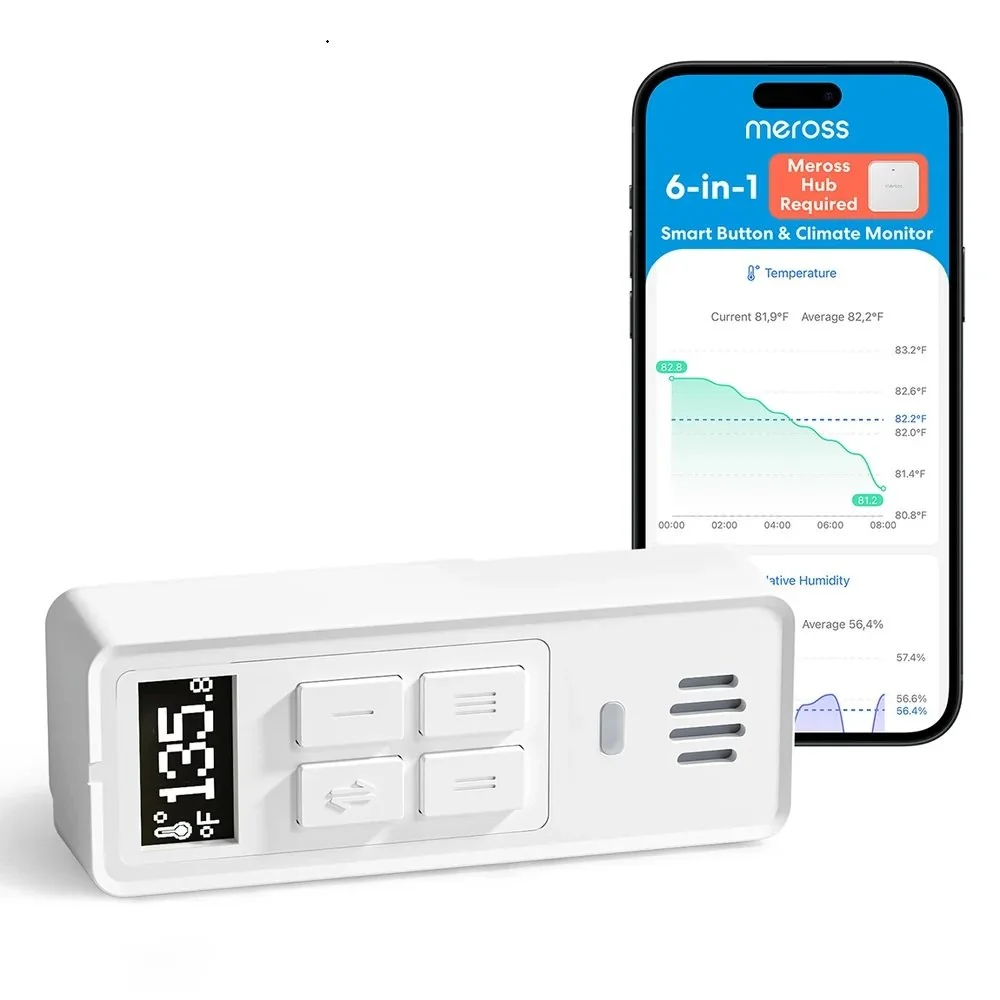
I’ve used a number of devices in this category over the years. The biggest problem with them is the limited number of buttons, but then they aren’t intended to be comprehensive controllers. The Meross MS700 Smart Button tackles this by providing multiple selectable modes, expanding the number of effective buttons from three to nine. It’s technically a Matter device, but that comes with some caveats.
Meross MS700 Smart Button
✔ Bluetooth for long battery life
✔ Uses Matter for smart home connection
✔ 9 assignable button functions
✔ Environmental sensors
✔ Battery Powered, no wiring
✔ Compact and portable
✘ Requires Meross Matter hub
✘ Requires Meross App for configuration
Up Front Considerations
Wall Mounting
In a lot of my use cases, I’ve wanted to have the scene controller in a fixed location, similar to a light switch. This makes it easy to find as well as fitting the expectations of guests and family members when it comes to lighting scenes. Not all smart buttons work with this paradigm, however, with many of them designed to be handheld instead. You’ll want to think about how you plan to use a smart button or scene remote with this in mind.
Communication Protocol
How you connect a smart device to your smart home is one of the first things to look at when choosing a model. There are a number of protocols in common use, and each has different benefits and hardware requirements. You can check these out on my Connectivity page. This is especially relevant to small battery-powered devices which can’t use the Wi-Fi that we all have already.
Battery Costs
While battery-powered smar devices now use protocols that are extremely energy efficient, you will still need to replace those batteries from time to time. Some of these can be considerably pricier than the usual AA or AAA batteries we commonly use. Smaller smart devices need to use smaller batteries and these tend to be more specialized, driving up the cost. These could be various sizes of button battery or a high-capacity model like the CR123 lithium battery. It pays to have spares of the various types your smart devices use on hand so you don’t end up with unexpected outages.
Installation and Setup
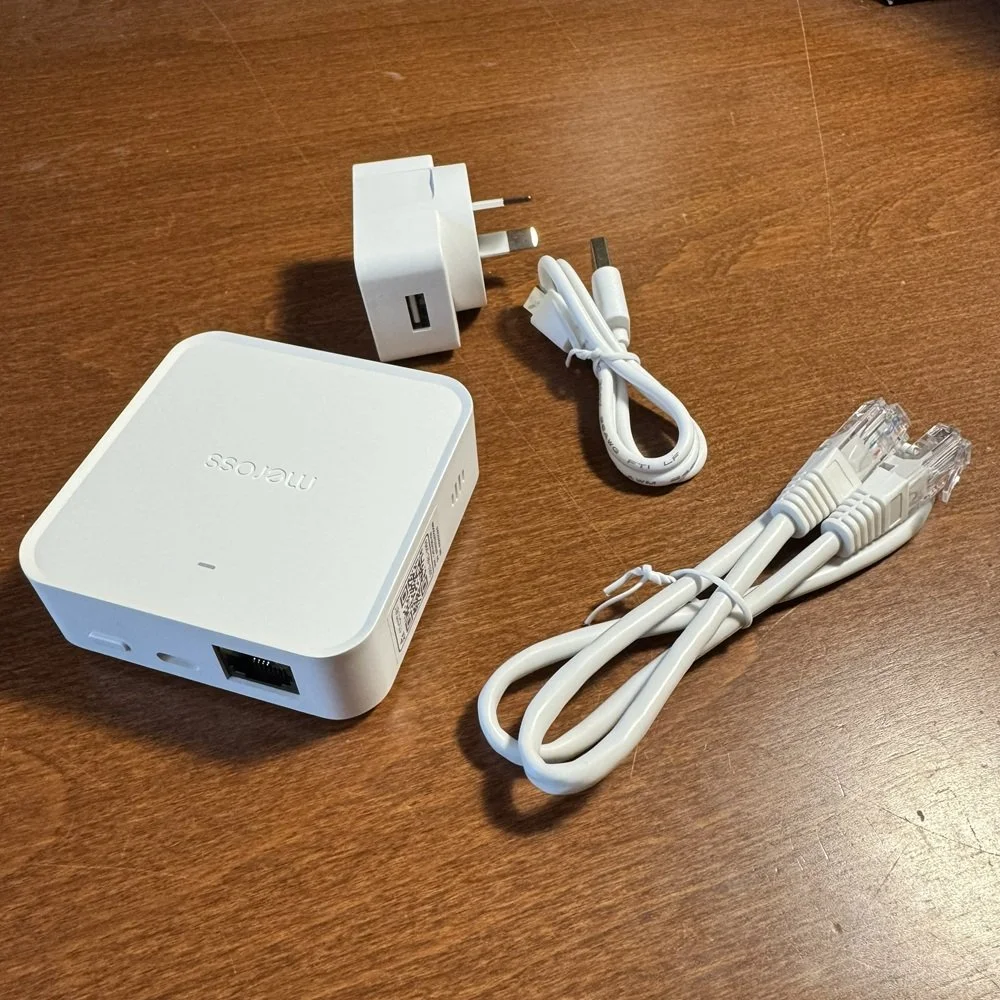
The Meross MS700 integrates with your smart home using a Meross Matter hub. I’m using the MSH450Pro, which is a compact model that supports Meross’ Bluetooth and 433MHz radio devices. It comes with an ethernet cable for direct connection to your router, or you can use Wi-Fi for more flexibility. Given the inherent limitations of Bluetooth range, being able to place it somewhere else is a good thing.
The MS700 itself is one of a range of low powered smart devices designed to go with this hub, and these all use Bluetooth for their own communication allowing for more portability over other smart home protocols that expect a more consistent location in a local mesh network.
This does mean that it’s not a pure Matter device, and you can’t set up the Smart Button without using the Meross app, which requires an account be created. You could technically set up the hub on your matter smart home without the Meross app, but then the app wouldn’t know about it to pair the child devices, so it’s not a realistic expectation.
Using the Meross app to set these devices up is, thankfully, quite simple and I had no issues getting it going first time. First you select the hub from the new device list and scan the Matter code. The usual Matter set up process for your smart home app of choice will do that rest. Once it’s connected, the Meross app will prompt you to set up another device. Select the MS700 from the list and the app will prompt you to press the pairing button on the front.
Once flashing the pairing can proceed and the Smart Button will appear in the Meross app as a device. Depending on your smart home app, the button functions should populate there as well. Using Apple home I accepted the default to add hub managed devices automatically, so the MS700’s functions appeared in the same room as I had set up the hub. These manifest as individual buttons, three to start with, and the temperature and humidity sensors that the Smart Button also includes.
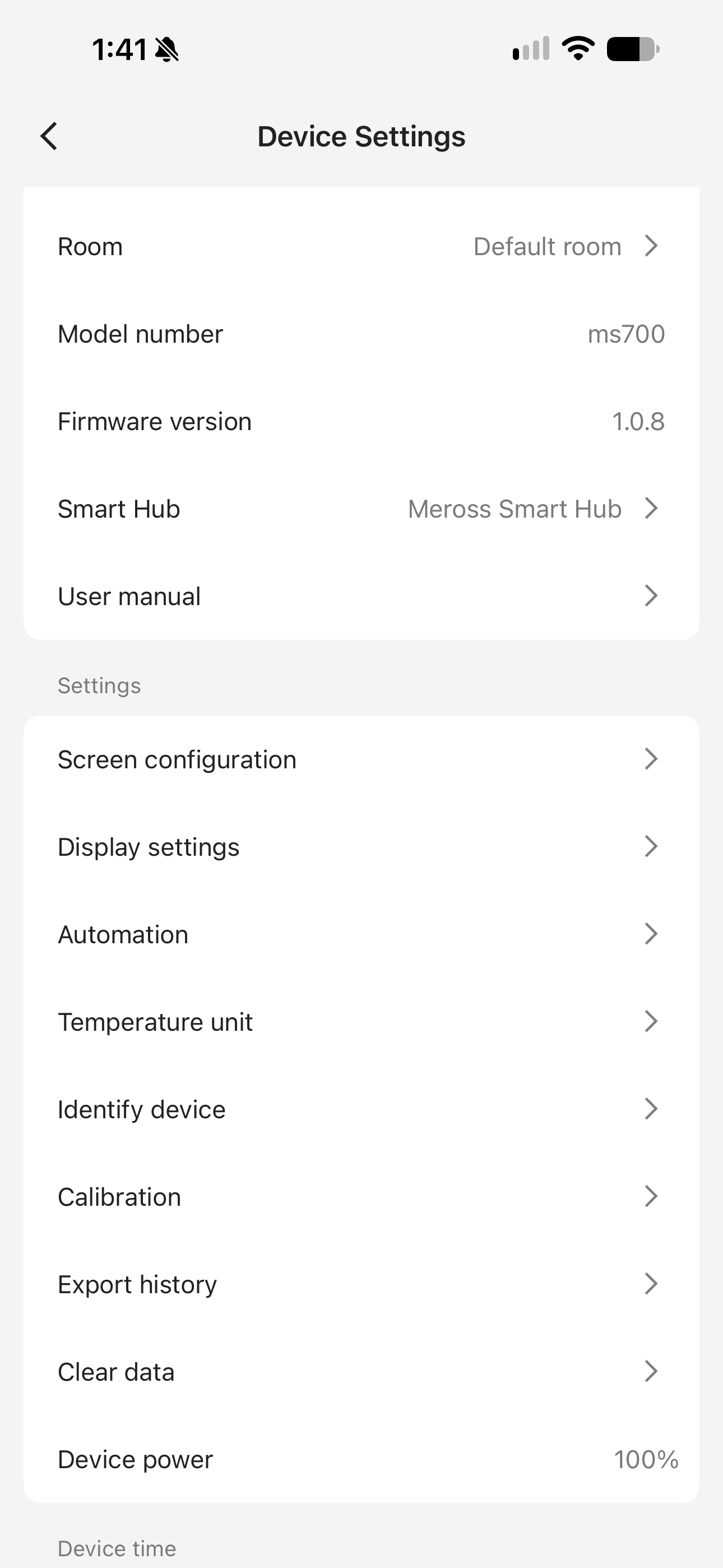
Once the initial setup is complete you can configure the device in the Meross app. This is done via a direct Bluetooth connection to your phone, so you need to press the pairing button (once per session) before many of the device settings can be changed. There are some general set up options like temperature units and sensor calibration offsets, but these are a once off thing. Of more interest are the actual button and display configuration options.
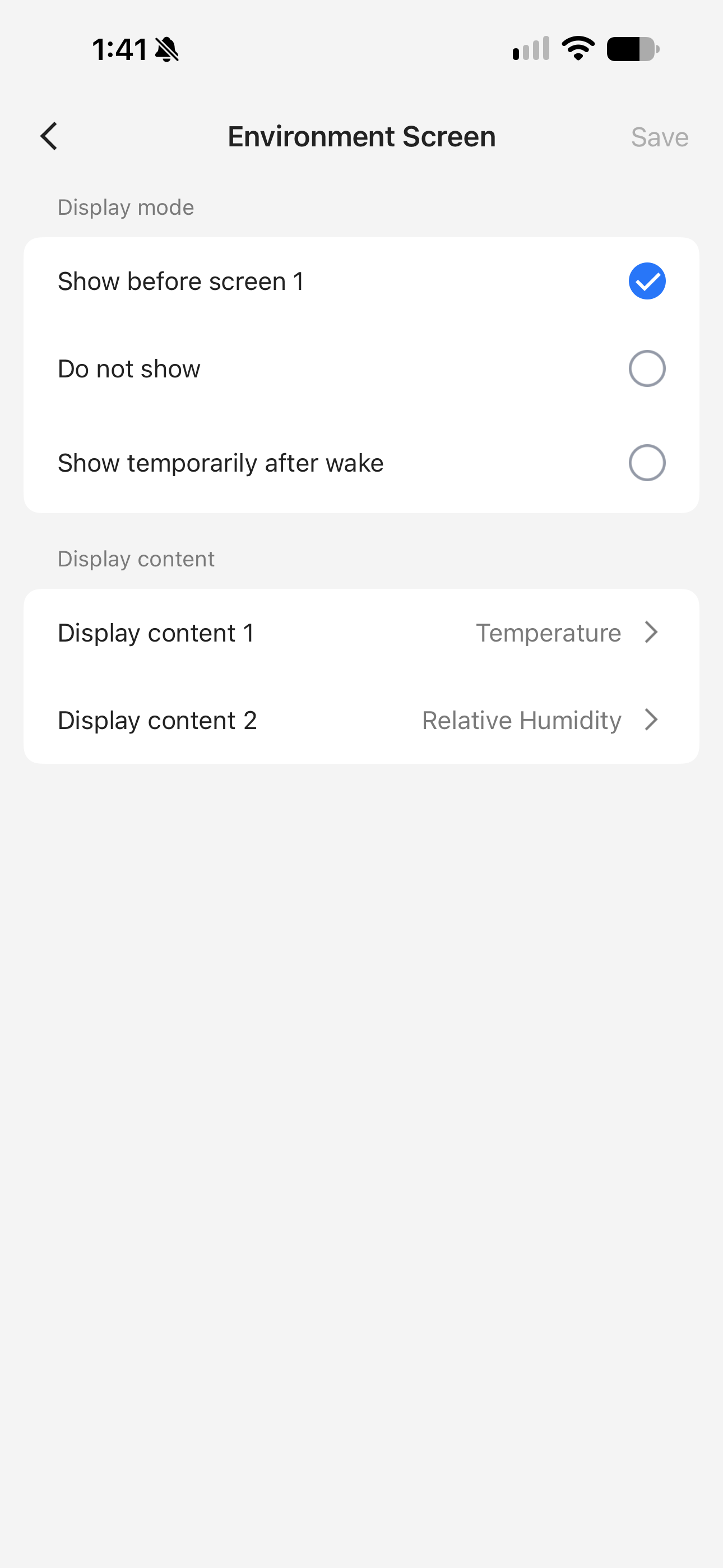
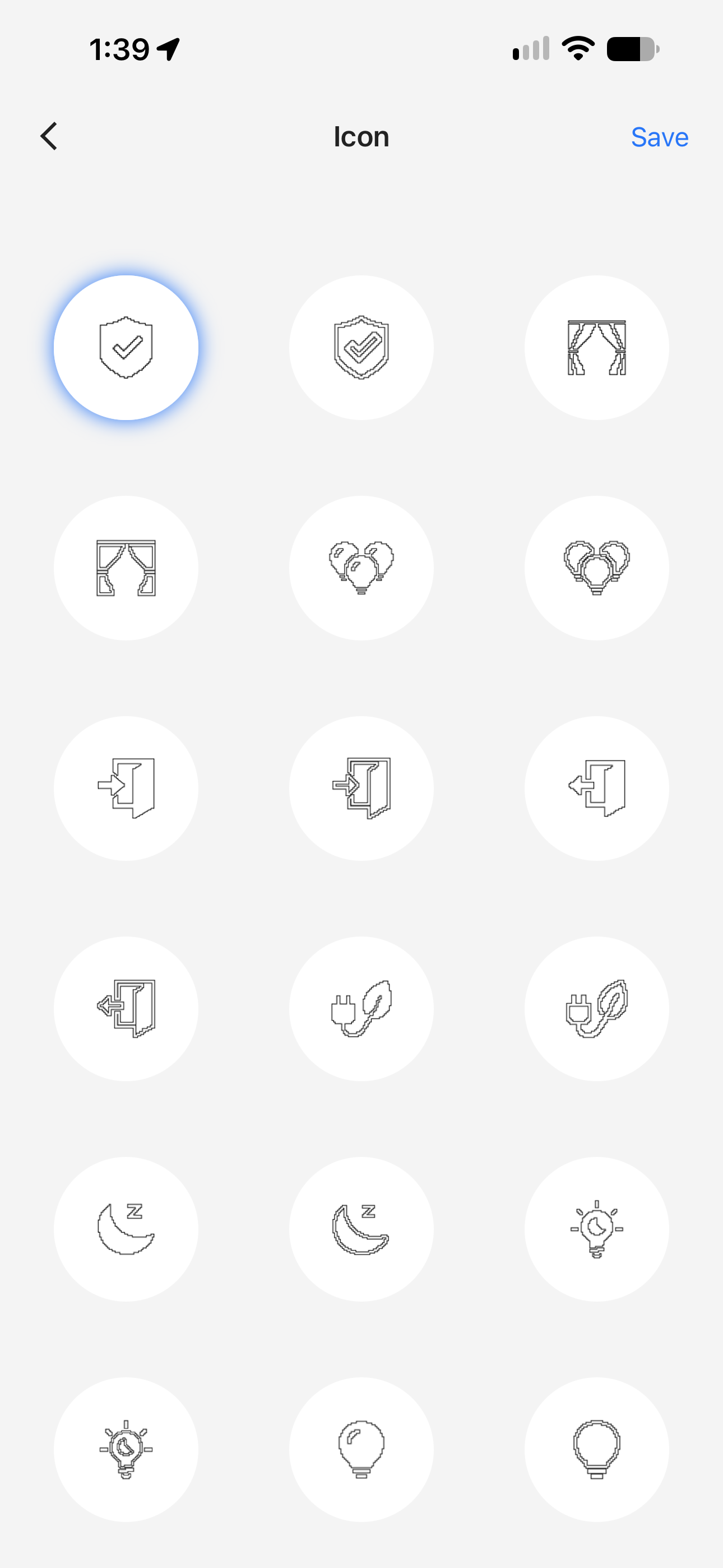
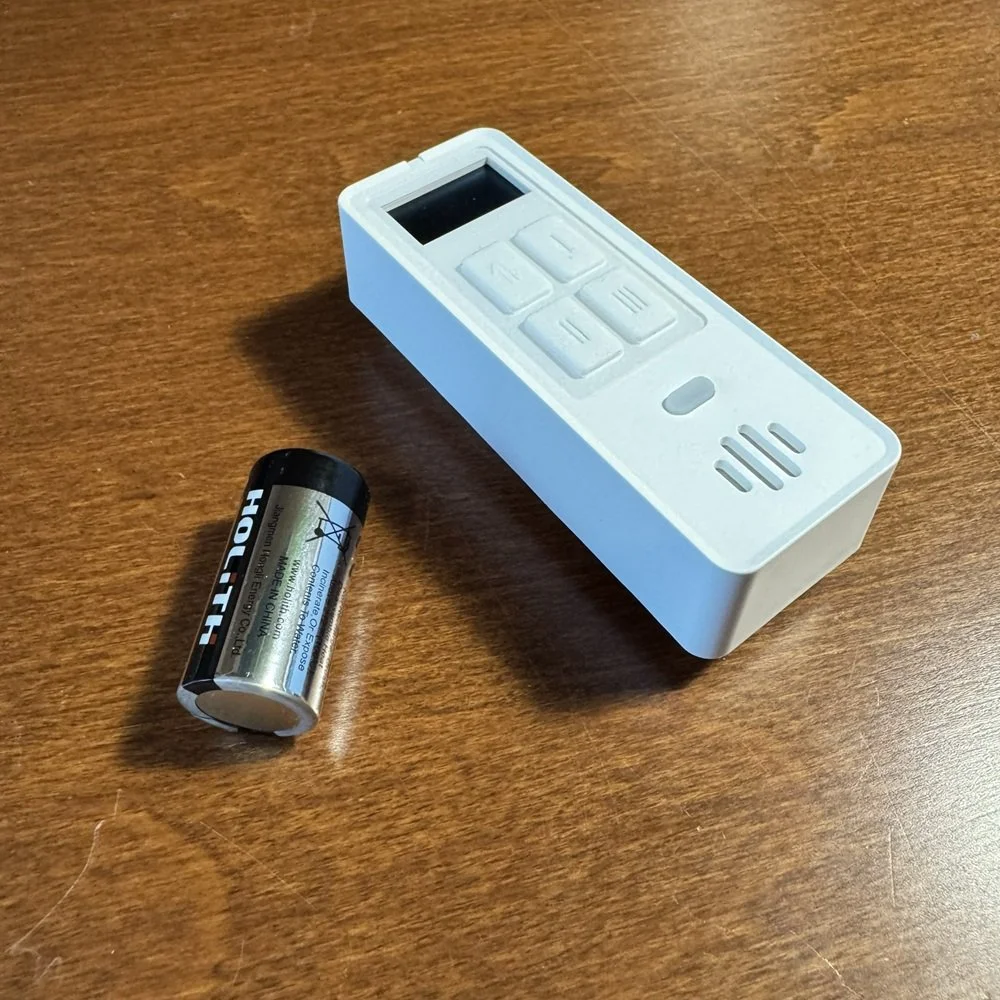
The screen will display the name and icon of the last used button, but can also be used to show the sensor data in various ways, either on wake or as part of the screen cycle sequence. The device has 4 buttons, three are numbered with roman numerals (I, II, III) and the fourth with arrows. This last one cycles the screen sequence. By default, you’ll just have the first button page for the three buttons and the sensor display.
Using the Screen configuration option in the app you can optionally enable two other button screens. This has the effect of adding another layer of functions to each button. By cycling the screens you can access these layers giving you a total of nine possible button functions. Each button can be assigned actions within the Meross app using their own device ecosystem, but it’s more likely that you’ll want to do this in your Matter app so you can access all of your smart home. Here you’ll see the additional button functions populate as extra discrete buttons.
MS700 Settings page
MS700 display options
MS700 icon selections
Meross MS700 Features
Programmable Buttons
The MS700 Smart Button provides you with a compact, portable remote control for your Matter smart home. With three physical buttons on the device, and the ability to cycle through three functions for each, you’ll have nine button actions that can be assigned to scenes or automations in your smart home. This is considerably more than your typical smart button provides, and gives you the option to control a full set of scenes for a given room or area of the house.
Alternatively, these can be used to control specific devices like blinds, fans or other smart devices that have discrete settings that you might use frequently. You can use the buttons in conjunction with other control method, like voice or app control, where you want quick, reliable access at certain times.
Room Sensor
The MS700 comes with a built-in temperature and humidity sensor. These will be present in your Matter smart home as individual sensors and can be used like any other. These feed into the Meross app’s data reporting feature allowing you to track up to a year’s worth of data for temperature, relative and absolute humidity, dew point and vapor pressure deficit. This data can be viewed on handy graphs in app or exported for use in other reporting tools if you need.
Battery Powered
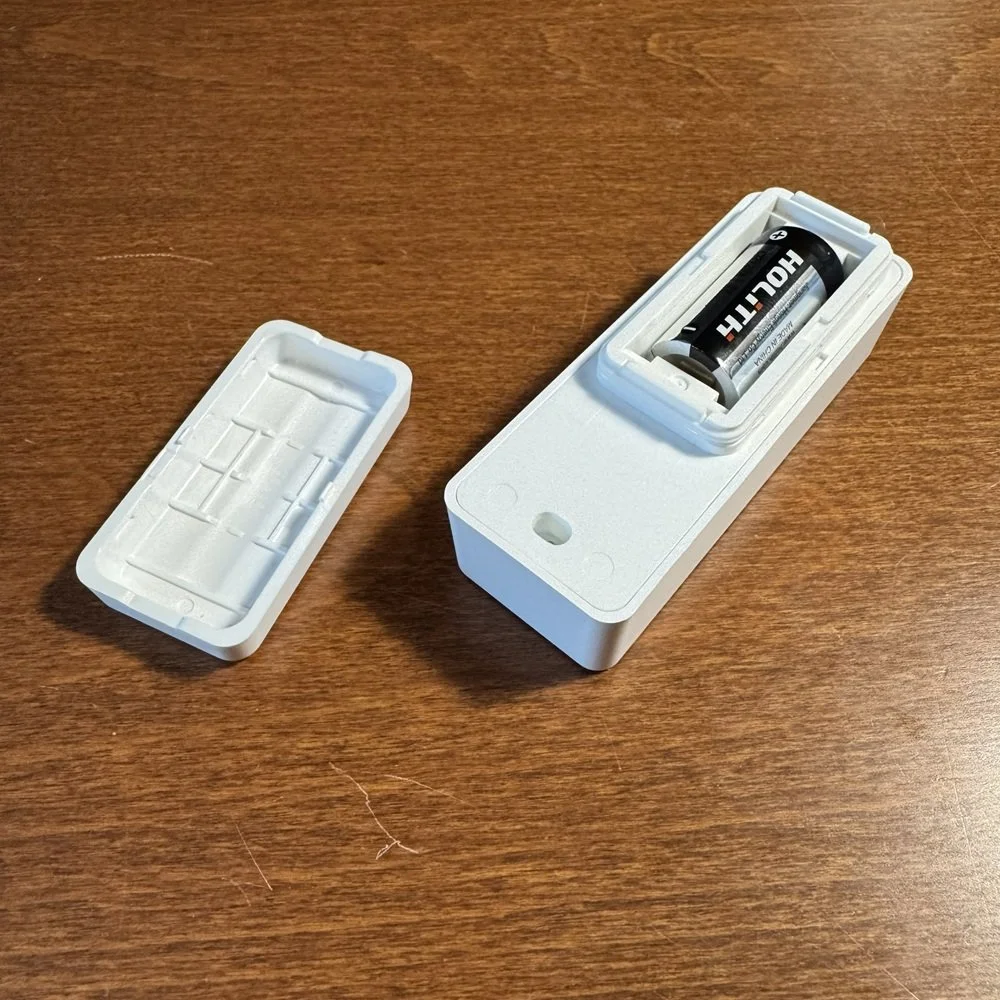
Portability of the MS700 is ensured by its compact size, thanks to the use of a CR123A battery. This ‘half AA’ type battery provides longer life than a button battery in a smaller size that 2 AAA batteries would. The battery is included in the pack and is easily accessed via a snap on cover on the rear of the device. A plastic tool is also included to help remove the cover, although it’s not difficult to do with any flat implement.
Simple packaging
What’s in the box
Matter code, switches, and battery panel
Real World Usage
Setting up the MS700 buttons with your smart home is a little finicky due to the need to configure the buttons actions in the smart home app and the buttons names and icons in the Meross app. That’s a one-time thing though, so it’s not a big deal so long as you don’t plan on changing the button functions frequently.
Pressing the buttons gives a short beep. It’s a handy confirmation that something should happen, but there’s no way to turn it off. It makes it a little less discrete to use the button over other control methods as a result, and it irritates my dog.
The other catch is the use of Bluetooth over a hub for communication. Bluetooth devices have always suffered from a delay problem in a smart home context. For consumer devices a small delay is tolerable, even unnoticeable, but in the case of a device needing to trigger other actions it’s natural to expect an instant response. Bluetooth doesn’t deliver that even under the best of circumstances.
In my testing I’ve found the delay between pressing a button and the assigned action being carried out is between 1 and 2 seconds. It’s not a deal breaker by any means, but it is just long enough to give that moment of anxiety that it’s not going to work - and then it does. A device using a smart home specific protocol like Zigbee or Thread avoids this issue (usually) by giving near-instant response times.
Bluetooth’s limited range may also be a factor. I placed the hub towards one end of the house, where my other comms gear is, and took the MS700 up to the theatre room at the front. This put several walls in the way between the two. Surprisingly I found the smart button continued to work correctly…to a point. After a few days I noticed the button on the MS700 flashing red, indicating loss of connection. I moved it back closer to the hub and it rectified itself, but it does indicate that the front room was at the limit of the Bluetooth’s range. Hub placement is going to be a careful consideration here, so the ability for it to use Wi-Fi is a good thing.
The portability of the MS700, plus the 9 button functions may make the delay and potential range issues an acceptable tradeoff. The delay will also vary depending on the types of devices you are controlling and your smart home platform, although the differences will be pretty minor in most cases.
The Verdict
Having a simple button to activate common scenes and device functions in your smart home adds another level of convenience and gives you options when voice control of reaching for your phone is impractical or intrusive to other members of the household. The Meross MS700 Smart Button provides a good deal of utility by not only giving you the option of nine separate functions on a compact remote, but the inclusion of a room sensor as well that feeds into your Matter smart home.
The need for a Meross Matter hub adds a level of cost and overhead that would make me hesitate if I was only interested in the smart button, but the hub supports a range of other handy Meross devices using the same platform, and if you intend to deploy multiple smart buttons, the hub becomes a better investment.
I’ve used a variety of smart buttons and similar gadgets to operate common scenes around the house, but this one offers functionality and portability that the others I’ve tried simply can’t match. If you are interested in having a simple remote for your smart home scenes, or for controlling preset functions on specific devices like fans, blinds and air conditioners, then the MS700 is worth a look.



Sometimes voice control or apps don’t provide the most convenient way of controlling our smart homes in the moment. Smart buttons have a role to play here, and this one delivers.